Drawing
Drawing the court
This chapter draws the court the games in this volume are played on, one of each
shape Ebitengine draws by hand, and a small image placed at any size and angle.
The work goes in a new program, cmd/shapes.
The court is three calls: a fill, a border stroked two pixels wide just inside the picture's edge, and a row of dashes down the middle.
// cmd/shapes/main.go — create
package main

import (
	"image/color"
	"log"

	"github.com/hajimehoshi/ebiten/v2"
	"github.com/hajimehoshi/ebiten/v2/vector"
)

const (
	screenW = 320
	screenH = 180
)

var (
	courtColor = color.RGBA{R: 16, G: 20, B: 28, A: 255}
	lineColor  = color.RGBA{R: 232, G: 232, B: 232, A: 255}
)

// drawCourt paints the court: the fill, a border two pixels wide just
// inside the edge, and a net of dashes down the middle.
func drawCourt(screen *ebiten.Image) {
	screen.Fill(courtColor)
	vector.StrokeRect(screen, 1, 1, screenW-2, screenH-2, 2, lineColor, false)
	for y := 0; y < screenH; y += 8 {
		vector.FillRect(screen, 159, float32(y), 2, 4, lineColor, false)
	}
}

type Game struct{}

func (g *Game) Update() error {
	return nil
}

func (g *Game) Draw(screen *ebiten.Image) {
	drawCourt(screen)
}

func (g *Game) Layout(outsideWidth, outsideHeight int) (int, int) {
	return screenW, screenH
}

func main() {
	ebiten.SetWindowSize(960, 540)
	ebiten.SetWindowTitle("Shapes")
	ebiten.SetTPS(60)
	if err := ebiten.RunGame(&Game{}); err != nil {
		log.Fatal(err)
	}
}
go vet ./...
go run ./cmd/shapes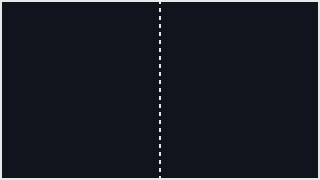
Each chapter's program gets its own directory under cmd/, so this one
is cmd/shapes. The constants, the three methods and
main are chapter 1's, with a new window title.
screen.Fill paints every pixel of the picture one colour.
vector.StrokeRect paints a line along the outline of a rectangle. The
stroke straddles that outline, half its width to either side. This one runs round
the rectangle from (1, 1) to (319, 179) at two pixels wide, so it covers
columns 0 and 1 on the left, 318 and 319 on the right, and the matching rows top
and bottom. That is the two outermost pixels all round, and nothing further in.
The net is drawn with vector.FillRect, the call chapter 1 used. The
loop runs from row 0 to row 176 in steps of eight, which is twenty-three dashes,
two pixels wide and four tall. They sit on columns 159 and 160. The middle of a
320-wide picture is the line between those two columns, so a two-pixel dash sits
on it exactly. Every game in this volume that has a court draws it with these
three calls.
Circles, rectangles and lines
The vector package draws five shapes by hand: a filled and a stroked
rectangle, a filled and a stroked circle, and a line. Add one of each to the left
half of the court.
// cmd/shapes/main.go — extend
var (
	courtColor = color.RGBA{R: 16, G: 20, B: 28, A: 255}
	lineColor  = color.RGBA{R: 232, G: 232, B: 232, A: 255}
	dimColor   = color.RGBA{R: 60, G: 66, B: 80, A: 255}
	ballColor  = color.RGBA{R: 232, G: 120, B: 80, A: 255}
)

func (g *Game) Draw(screen *ebiten.Image) {
	drawCourt(screen)
	drawShapes(screen)
}

// drawShapes paints one of each shape on the left half of the court.
func drawShapes(screen *ebiten.Image) {
	vector.FillCircle(screen, 40, 50, 20, ballColor, false)
	vector.StrokeCircle(screen, 100, 50, 20, 2, lineColor, false)
	vector.FillRect(screen, 20, 100, 40, 24, lineColor, false)
	vector.StrokeRect(screen, 80, 100, 40, 24, 2, lineColor, false)
	vector.StrokeLine(screen, 20, 150, 140, 150, 1, dimColor, false)
	vector.StrokeLine(screen, 20, 160, 140, 170, 3, dimColor, false)
}
go vet ./...
go run ./cmd/shapes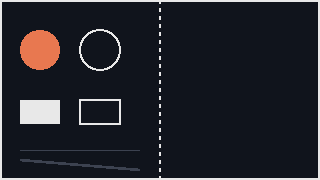
This is the first listing marked extend, and the convention holds for
the rest of the book. An extend listing prints whole declarations. Each one
replaces the declaration of the same name in the file, or is added at the end if
the file has none. Here the var block gains two colours,
Draw gains a line, and drawShapes is new. The imports do
not change.
Each call names its shape by numbers. A circle takes its centre and its radius. A rectangle takes its top-left corner, its width and its height. A line takes its two ends. A stroked shape takes a stroke width before its colour.
Every call ends in false. That argument declines antialiasing, which
is the smoothing of a shape's edges. A pixel game declines it on purpose. At 320
by 180 each pixel is a visible square on screen, and a smoothed edge is a row of
half-lit squares that reads as blur. The line at row 150 is one pixel wide and the
sloping line below it is three, which is the difference between a hairline and a
stroke at this size.
Making an image from text
Most of what a game draws is an image: a picture made once and copied onto the
screen wherever the game wants it. An image is a rectangle of pixels. Each pixel is
four bytes: red, green, blue, and alpha, which is how opaque the pixel is, 255 for
solid. The bytes run left to right along a row, and the rows run top to bottom. So an
eight-by-eight image is 256 bytes, and the pixel at column x, row
y starts at byte 4 × (8y + x).
This stage builds an eight-by-eight arrow from eight lines of text and draws it five ways: at one, four and eight times its size, at four times through a different filter, and at four times turned a quarter turn.
// cmd/shapes/main.go — extend
import (
	"image/color"
	"log"
	"math"

	"github.com/hajimehoshi/ebiten/v2"
	"github.com/hajimehoshi/ebiten/v2/vector"
)

type Game struct {
	glyph *ebiten.Image
}

func (g *Game) Draw(screen *ebiten.Image) {
	drawCourt(screen)
	drawShapes(screen)
	drawGlyphs(screen, g.glyph)
}

func main() {
	ebiten.SetWindowSize(960, 540)
	ebiten.SetWindowTitle("Shapes")
	ebiten.SetTPS(60)
	if err := ebiten.RunGame(&Game{glyph: newGlyph()}); err != nil {
		log.Fatal(err)
	}
}

// glyphArt is an eight-by-eight picture as text: # is ink, . is paper.
var glyphArt = []string{
	"...##...",
	"..####..",
	".######.",
	"...##...",
	"...##...",
	"...##...",
	"...##...",
	"........",
}

var (
	inkColor   = color.RGBA{R: 255, G: 255, B: 255, A: 255}
	paperColor = color.RGBA{R: 40, G: 90, B: 160, A: 255}
)

// newGlyph turns glyphArt into an image: four bytes a pixel, red, green,
// blue and alpha, the rows laid end to end.
func newGlyph() *ebiten.Image {
	w, h := len(glyphArt[0]), len(glyphArt)
	pix := make([]byte, 4*w*h)
	for y, row := range glyphArt {
		for x := 0; x < w; x++ {
			c := paperColor
			if row[x] == '#' {
				c = inkColor
			}
			i := 4 * (y*w + x)
			pix[i], pix[i+1], pix[i+2], pix[i+3] = c.R, c.G, c.B, c.A
		}
	}
	img := ebiten.NewImage(w, h)
	img.WritePixels(pix)
	return img
}

// drawGlyph draws img scaled by s, turned by angle degrees about its own
// centre, with the centre at (x, y), through the filter given.
func drawGlyph(screen, img *ebiten.Image, x, y, s, angle float64, filter ebiten.Filter) {
	w, h := float64(img.Bounds().Dx()), float64(img.Bounds().Dy())
	op := &ebiten.DrawImageOptions{}
	op.GeoM.Translate(-w/2, -h/2)
	op.GeoM.Scale(s, s)
	op.GeoM.Rotate(angle * math.Pi / 180)
	op.GeoM.Translate(x, y)
	op.Filter = filter
	screen.DrawImage(img, op)
}

// drawGlyphs draws the glyph on the right half of the court: at one, four
// and eight times through the nearest-pixel filter, then at four times
// through the linear filter, then at four times turned a quarter turn.
func drawGlyphs(screen, glyph *ebiten.Image) {
	drawGlyph(screen, glyph, 180, 50, 1, 0, ebiten.FilterNearest)
	drawGlyph(screen, glyph, 212, 50, 4, 0, ebiten.FilterNearest)
	drawGlyph(screen, glyph, 272, 50, 8, 0, ebiten.FilterNearest)
	drawGlyph(screen, glyph, 212, 130, 4, 0, ebiten.FilterLinear)
	drawGlyph(screen, glyph, 272, 130, 4, 90, ebiten.FilterNearest)
}
go vet ./...
go run ./cmd/shapes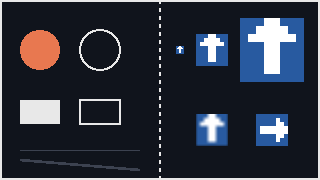
newGlyph walks the eight strings and writes four bytes for each
character into one 256-byte slice, at the offset the formula above gives.
ebiten.NewImage makes an empty image of that size, and
WritePixels copies the slice into it. That call is how pixels get into
an image from anywhere; a file decoder does the same thing after reading a PNG.
The image is made once, in main, and kept in the Game.
Making it again in every Draw would send 256 bytes to the graphics
card sixty or more times a second for no gain.
screen.DrawImage is Ebitengine's call for copying one image onto
another. It takes the image and a DrawImageOptions, whose
GeoM field holds the placement and whose Filter field
says how pixels are looked up. The next two sections take those in turn.
Scale, rotate, then move
GeoM is a matrix: a list of steps a point goes through. You build it by
calling Translate, Scale and Rotate on it, and
the steps are applied in the order you wrote them. Scale and
Rotate both work about the origin, the point (0, 0).
An image's own coordinates start at its top-left corner, so drawGlyph
has four steps. The first Translate moves the image four pixels up and
left, which puts its centre on the origin. Scale multiplies every
coordinate by s. Rotate turns the image about its centre.
The last Translate carries the centre to (x,
y).
Follow the four-times arrow centred on (212, 50). The image's corner (0, 0) goes to (-4, -4), then to (-16, -16), then stays put through a turn of zero, then lands at (196, 34). The opposite corner lands at (228, 66). That is a 32-pixel square with its centre where it was asked for.
Scaling and rotating first, then moving last, is what keeps those two steps working about the image's own centre. A move done earlier is scaled and turned by the steps that follow it.
Take the source corner (8, 8) of the four-times arrow centred on (212, 50). It becomes (4, 4) after the centring move, (16, 16) after the scale, stays put through a turn of zero, and ends at (228, 66) after the last move.
Now run the same steps with the last move done first. The corner becomes (4, 4), then (216, 54), then, scaled by four, (864, 216). That is more than twice the picture's width away. Scaling after moving scales the move.
drawGlyph, with
one corner of the source image followed through them: centred, scaled, turned, and
moved to where it goes.
Move the last Translate up two lines, so the glyph is moved to
(x, y) and then scaled:
func drawGlyph(screen, img *ebiten.Image, x, y, s, angle float64, filter ebiten.Filter) {
	w, h := float64(img.Bounds().Dx()), float64(img.Bounds().Dy())
	op := &ebiten.DrawImageOptions{}
	op.GeoM.Translate(-w/2, -h/2)
	op.GeoM.Translate(x, y)
	op.GeoM.Scale(s, s)
	op.GeoM.Rotate(angle * math.Pi / 180)
	op.Filter = filter
	screen.DrawImage(img, op)
}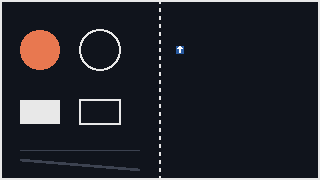
It compiles, it vets, it runs, and four arrows are missing. Nothing reports an error. Reason from the arrow that is left.
The one-times arrow is where it was, and one is the only scale that leaves a position alone: (176, 46) multiplied by one is (176, 46). The four-times arrow's centre went to (212, 50) and was then multiplied by four, to (848, 200), which is off the right edge and off the bottom. The eight-times arrow went to (2176, 400). The two on the lower row went to (848, 520) and (1088, 520), and the second of those was then turned a quarter turn about the origin, which swung it further away still.
Drawing outside the picture is legal, which is why there is no error: a sprite walking off the edge of the screen does it on purpose. Put the move back where it belongs, last.
The nearest and the linear filter
The filter decides what colour a screen pixel gets when it falls between source pixels, which happens whenever an image is scaled or turned.
FilterNearest gives the screen pixel the colour of the one source pixel
it lands on, so a source pixel scaled by four becomes a crisp four-by-four square.
FilterLinear blends the four nearest source pixels, which suits a
photograph and spoils pixel art: it turns every edge into a fade. In the picture
above, the four-times arrow through the linear filter is the blurred one.
Every image in this volume is drawn through the nearest filter, which is also
Ebitengine's default. drawGlyph takes the filter as an argument only so
that the two can be put side by side.
How DrawImage uses the matrix
DrawImage does not move pixels one at a time. It sends the image's four
corners through the matrix, which gives a four-sided figure on the screen, and asks
the graphics card to fill it. For each screen pixel inside that figure the card works
out which point of the source it corresponds to and looks that point up through the
filter.
Three things follow. Any chain of moves, scales and turns costs the same as a plain copy, because the matrix is applied to four corners either way. The order of the steps is the whole meaning of the chain. And the filter belongs to the lookup, not to the image, so the same image can be drawn crisp in one call and blurred in the next.
Checkpoint
- Draw the court with three calls, and say which pixels a two-pixel stroke covers and why the net sits on columns 159 and 160.
- Name the five
vectorcalls, the numbers each one takes, and what the finalfalsedeclines. - Make an eight-by-eight image from text with
WritePixels, and give the byte offset of any pixel in it. - Build a
GeoMthat scales, turns and moves an image about its own centre, and follow one corner through the four steps by hand. - Say what the nearest and the linear filter do to a scaled-up pixel, and which one a pixel game uses.
- Explain, from where the surviving arrow was, why a move before a scale sends the other arrows off the screen.
Exercise 1 — a diagonal net. Replace the dashes with one line from the top-left corner to the bottom-right, one pixel wide, and run it. Which pixels does that line light on a 320-by-180 picture?
vector.StrokeLine(screen, 0, 0, screenW, screenH, 1, lineColor,
                false)
. The line is steeper across than down, so it lights roughly one
pixel per column, 320 in all, stepping down a row every 1.78 columns. With the
smoothing declined, each step is a hard one-pixel jog, and you can count the
jogs.
Exercise 2 — the fade, measured. Draw the glyph at
sixteen times through FilterLinear, on its own, and count how many
screen pixels the fade between paper and ink spans.
Sixteen. The blend runs from the centre of one source pixel to the centre of
the next, which at sixteen times is sixteen screen pixels. The same edge
through FilterNearest is one pixel wide. The fade is as wide as
the scale, so linear filtering of pixel art gets worse the bigger the art is
drawn.
Exercise 3 — a turning arrow. Give the game an
angle field, add one to it in Update, and draw the
eight-times arrow with it. How long does one full turn take, and where does the
change belong?
Six seconds: 360 ticks of one degree at sixty ticks a second. The
angle += 1 belongs in Update, by chapter 1's rule,
and the draw call reads it. Put the increment in Draw and the
arrow turns at whatever speed the display gives it.