Sprites and Animation
Loading a sprite sheet
This chapter loads one PNG that holds the game's small pictures. The program cuts it
into paddles, ball frames and digits, then animates the ball with a counter in
Update.
The sheet is 64 by 32 pixels. It contains two paddles, four ball frames and the
digits 0 to 9. Ebitengine draws the whole sheet through DrawImage, or it
draws a sub-image that views one rectangle of the same sheet.
Showing the sheet
Download the sheet into the module, at assets/pong-sheet.png; the
programs open it by that path, from the module's root, where every
go run in this book is typed. The second file is the same sheet at
four times its size on the court colour, for looking at; nothing loads it.
mkdir -p assets
// cmd/sprite/main.go — create
package main

import (
	"image/color"
	"image/png"
	"log"
	"os"

	"github.com/hajimehoshi/ebiten/v2"
)

const (
	screenW = 320
	screenH = 180
)

var courtColor = color.RGBA{R: 16, G: 20, B: 28, A: 255}

// loadImage reads a PNG file and hands its pixels to Ebitengine.
func loadImage(path string) (*ebiten.Image, error) {
	f, err := os.Open(path)
	if err != nil {
		return nil, err
	}
	defer f.Close()
	img, err := png.Decode(f)
	if err != nil {
		return nil, err
	}
	return ebiten.NewImageFromImage(img), nil
}

// drawAt draws img scaled by s with its top-left corner at (x, y).
func drawAt(screen, img *ebiten.Image, x, y, s float64) {
	op := &ebiten.DrawImageOptions{}
	op.GeoM.Scale(s, s)
	op.GeoM.Translate(x, y)
	screen.DrawImage(img, op)
}

type Game struct {
	sheet *ebiten.Image
}

func (g *Game) Update() error {
	return nil
}

// drawSheet draws the whole sheet at three times its size.
func (g *Game) drawSheet(screen *ebiten.Image) {
	screen.Fill(courtColor)
	drawAt(screen, g.sheet, 8, 8, 3)
}

func (g *Game) Draw(screen *ebiten.Image) {
	g.drawSheet(screen)
}

func (g *Game) Layout(outsideWidth, outsideHeight int) (int, int) {
	return screenW, screenH
}

func main() {
	ebiten.SetWindowSize(960, 540)
	ebiten.SetWindowTitle("Sprites")
	ebiten.SetTPS(60)
	sheet, err := loadImage("assets/pong-sheet.png")
	if err != nil {
		log.Fatal(err)
	}
	if err := ebiten.RunGame(&Game{sheet: sheet}); err != nil {
		log.Fatal(err)
	}
}
go vet ./...
go run ./cmd/sprite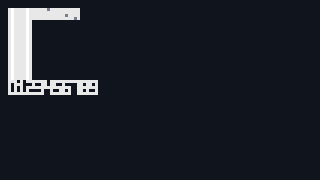
loadImage opens the file, decodes the PNG with image/png
and hands the decoded image to ebiten.NewImageFromImage. Ebitengine
then has an image it can draw.
The file is decoded once in main, before the window opens. Reading it
in Draw would read the same file every time the screen was painted.
The paddles sit at the sheet's top-left corner, the ball frames sit beside them,
and the digits sit along the bottom.

pong-sheet-4x.png: the sheet at four times. Two paddles, each lit one column in from the side that will face the net; the ball's four frames, with a grey seam at the top, the right and the bottom of the last three; the ten digits along row 24.
The sheet was made pixel by pixel, 362 painted pixels in all. Piskel
(piskelapp.com) runs in a browser and exports a PNG. LibreSprite is a
free installed editor.
Draw on a transparent background. Keep each piece at whole-pixel positions you write down. Export at one times, not scaled, because the game does the scaling.
Cutting sub-images
A piece of the sheet is a rectangle: its left column, top row, width and height, in
the sheet's own pixels. The paddles are at (0, 0) and (4, 0), four wide and
twenty-four tall; the ball's frames start at column 8 and follow every four columns,
four by four; the digits start at (0, 24) and follow every three columns, three
wide and five tall. SubImage takes such a rectangle and returns an
image that is the sheet seen through it: drawing the sub-image draws those pixels
of the sheet and no others, and no pixel is copied to make it.
// cmd/sprite/main.go — extend
import (
	"image"
	"image/color"
	"image/png"
	"log"
	"os"

	"github.com/hajimehoshi/ebiten/v2"
)

type Game struct {
	sp *sprites
}

// drawSheet draws the whole sheet at three times its size.
func (g *Game) drawSheet(screen *ebiten.Image) {
	screen.Fill(courtColor)
	drawAt(screen, g.sp.sheet, 8, 8, 3)
}

func (g *Game) Draw(screen *ebiten.Image) {
	g.drawSheet(screen)
	g.drawPieces(screen)
}

func main() {
	ebiten.SetWindowSize(960, 540)
	ebiten.SetWindowTitle("Sprites")
	ebiten.SetTPS(60)
	sheet, err := loadImage("assets/pong-sheet.png")
	if err != nil {
		log.Fatal(err)
	}
	if err := ebiten.RunGame(&Game{sp: cutSprites(sheet)}); err != nil {
		log.Fatal(err)
	}
}

// sprites is the sheet cut into the pictures a game draws. Each piece is a
// sub-image: a view onto the one sheet, not a copy of its pixels.
type sprites struct {
	sheet       *ebiten.Image
	left, right *ebiten.Image    // the paddles, four by twenty-four
	ball        [4]*ebiten.Image // the ball's four spin frames, four by four
	digits      [10]*ebiten.Image
}

// cutSprites cuts the pieces out of the sheet, where the sheet's layout
// puts them: paddles at the top left, the ball's frames beside them, the
// digits, three by five each, along row 24.
func cutSprites(sheet *ebiten.Image) *sprites {
	cut := func(x, y, w, h int) *ebiten.Image {
		return sheet.SubImage(image.Rect(x, y, x+w, y+h)).(*ebiten.Image)
	}
	s := &sprites{sheet: sheet, left: cut(0, 0, 4, 24), right: cut(4, 0, 4, 24)}
	for i := range s.ball {
		s.ball[i] = cut(8+4*i, 0, 4, 4)
	}
	for i := range s.digits {
		s.digits[i] = cut(3*i, 24, 3, 5)
	}
	return s
}

// drawPieces draws each piece the sheet was cut into, at four times: the
// paddles to the right of the sheet, the ball's frames and the digits in
// a row under it.
func (g *Game) drawPieces(screen *ebiten.Image) {
	drawAt(screen, g.sp.left, 216, 8, 4)
	drawAt(screen, g.sp.right, 240, 8, 4)
	for i, b := range g.sp.ball {
		drawAt(screen, b, float64(8+24*i), 116, 4)
	}
	for i, d := range g.sp.digits {
		drawAt(screen, d, float64(120+16*i), 116, 4)
	}
}
go vet ./...
go run ./cmd/sprite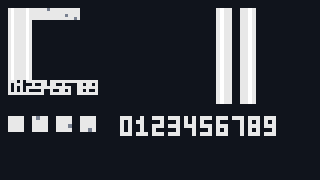
cut is declared inside cutSprites so the rectangles stay
close to the sheet layout. Each call names the left column, top row, width and
height of one piece.
SubImage returns Go's image.Image interface. Ebitengine
documents that a sub-image of an Ebitengine image is also an Ebitengine image, so
the type assertion turns it back into *ebiten.Image.
No pixels are copied when the program cuts the sheet. Drawing sixteen pieces means
sixteen DrawImage calls, all reading rectangles from the same loaded
image.
Animating with a counter
// cmd/sprite/main.go — extend
type Game struct {
	sp   *sprites
	spin int // ticks the ball has been turning
}

func (g *Game) Update() error {
	g.spin++
	return nil
}

func (g *Game) Draw(screen *ebiten.Image) {
	g.drawSheet(screen)
	g.drawPieces(screen)
	g.drawSpin(screen)
}

// The ball turns one frame every six ticks: a full turn in twenty-four
// ticks, two and a half turns a second.
const spinEvery = 6

// drawSpin draws the frame the counter picks: at eight times in the top
// right corner, and at one, rolling along the bottom a pixel a tick.
func (g *Game) drawSpin(screen *ebiten.Image) {
	frame := (g.spin / spinEvery) % 4
	drawAt(screen, g.sp.ball[frame], 272, 8, 8)
	drawAt(screen, g.sp.ball[frame], float64(g.spin%screenW), 168, 1)
}
go vet ./...
go run ./cmd/sprite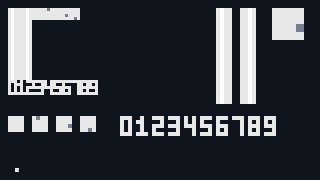
The big ball turns because spin chooses a different frame every six
ticks. The small ball uses the same frame and moves one pixel per tick along the
bottom. A full turn takes twenty-four ticks, so the small ball rolls twenty-four
pixels per turn.
Update raises spin by one. Draw may read
the counter and choose a frame, but it must not change the counter.
The counter goes 0, 1, 2, … and the frame has to go 0, 0, 0, 0, 0, 0, 1, 1, 1, 1,
1, 1, 2, …, 3, 3, 3, 3, 3, 3, 0, 0, …: each frame held for six ticks, then round
again. Dividing the counter by six and dropping the remainder gives 0 for ticks 0
to 5, 1 for 6 to 11, 2 for 12 to 17, and keeps climbing; taking that number's
remainder after dividing by four folds it back onto 0 to 3. On tick 15,
15 ÷ 6 is 2 remainder 3, so 2; 2 divided by 4 is 0 remainder 2, so frame
2. On tick 45, 45 ÷ 6 is 7; 7 divided by 4 leaves 3; frame 3. Go's
/ on integers drops the remainder and % keeps it, so the
two steps are (spin / 6) % 4.
The counter is used by drawing, so it is easy to put the increment in
Draw:
func (g *Game) Update() error {
	return nil
}

func (g *Game) Draw(screen *ebiten.Image) {
	g.spin++
	g.drawSheet(screen)
	g.drawPieces(screen)
	g.drawSpin(screen)
}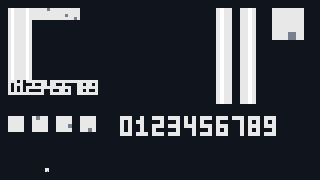
Fifteen ticks after the window opens, this display has painted 45 pictures. The counter reads 45, so the big ball shows frame 3 instead of frame 2. The small ball is at column 45 instead of column 15.
A display that paints three pictures per tick makes the animation run three times
as fast. A machine that skips pictures slows it down. The counter changes game
state, so it belongs in Update.
Using views and counts
A sub-image is a rectangle into a sheet. Ebitengine still draws it with
DrawImage; only the source rectangle changes.
Animation uses the same draw call with a different rectangle. The rectangle is chosen
by an integer that Update changes. Longer animations use more frames or
a different divisor, but the idea stays the same.
Checkpoint
- Load a PNG into an Ebitengine image in three steps, once, before the window opens.
- Cut a sheet into sub-images from a written-down layout, and say what a sub-image shares with the sheet and what it copies.
- Draw sixteen pieces of one sheet at four times and know that it is one image on the graphics card.
- Pick an animation frame from a counter with one division and one remainder, and work out the frame on any tick by hand.
- Say why the counter lives in
Update, with the numbers a three-pictures-a-tick display gives when it does not.
Exercise 1 — spin the other way. Make the small ball roll left, from column 319 down, and make its seam walk the other way round to match.
Draw it at 319 - g.spin%screenW, and pick the frame as
(4 - frame) % 4: frame 1 becomes 3, 3 becomes 1, and 0 and 2 stay,
so the seam goes bottom, right, top and behind, which is the turn a ball
rolling left makes.
Exercise 2 — a slower turn. Change
spinEvery to 12 and watch the big ball. How many turns a second now,
and how far does the small ball roll per turn?
One and a quarter turns a second: 48 ticks a turn at sixty ticks a second. The small ball rolls 48 pixels a turn, twice what it rolled per turn before, and looks as if it were sliding. A rolling ball wants its frames to match its distance.
Exercise 3 — a seventeenth piece. Open the sheet in a
pixel editor, draw an eight-by-eight picture of your own at (32, 0), where
the sheet is empty, save it over assets/pong-sheet.png, and cut it
out and draw it at eight times.
One more field in sprites, cut(32, 0, 8, 8) in
cutSprites, and a drawAt somewhere free, such as
(272, 60) at eight times. Every other piece is untouched, because their
rectangles do not overlap yours, and the volume's games still load the file.
Keep the original sheet beside it, as pong-sheet-mine.png if you
like, so that the pictures in the book still match what you see.